Read announcements and required notices
Announcements are the messages your club sends to its members: news, reminders and invitations. You always get them in the app. You can also get them by email and, if your club uses it, by WhatsApp. A required club notice is an announcement the club must be sure you saw, for example a change to a meeting or a call to an assembly.
Who can do this: every member can read the messages sent to them. Writing and sending messages needs Communications: Edit; that is for officers.
How to read a message
Section titled “How to read a message”- Open Announcements in the menu. On a phone, tap the menu button at the top left first.
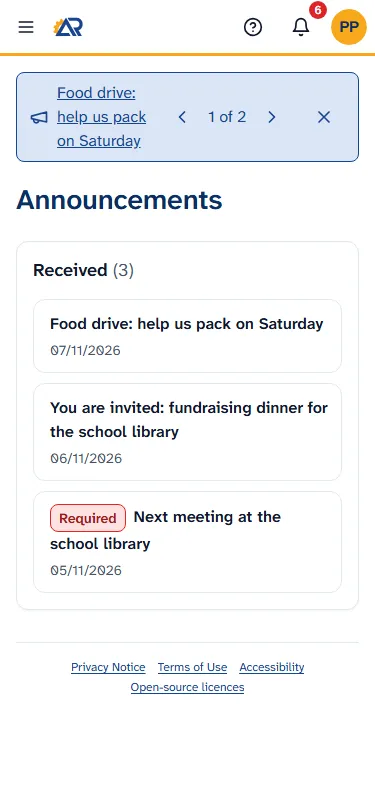
- The card Received lists the messages the club has sent you, newest first. Each row shows the subject and the date. A row with the red word Required is a required club notice.
- Tap a row to open it. The page shows the subject, the message, and a link Announcements at the top to go back to the list.
You also see a new message in three other places:
- The bell at the top right shows it, with the subject. Tap the bell, then tap the notice to open the message. Mark read on a line only clears that line in the bell. It does not mark a required club notice as read.
- A bar at the top of the page, if the club asked for it. The bar shows the subject as a link. For a required notice it starts with Required club notice:. If you have more than one, two small arrows and a count such as “1 of 2” let you go through them.
- Your email, and your phone, if you turned on push messages: see Put RotarApp on your phone. The email has a button Open in the app that opens the message in RotarApp.
A message the club withdraws disappears from the list, the bar and the bell. If you open a link to it, the page says “This message is not available.”
How to mark a required notice as read
Section titled “How to mark a required notice as read”A required club notice shows a red line at the top of the message: Required club notice and the reason. The reason is one of Assembly or election, Meeting change, Dues or finance and Bylaws or governance. The club can see who has marked it as read.
- Open the message, as above.
- Tap I have read it. A message says “Thank you. Marked as read.” and the button goes away.
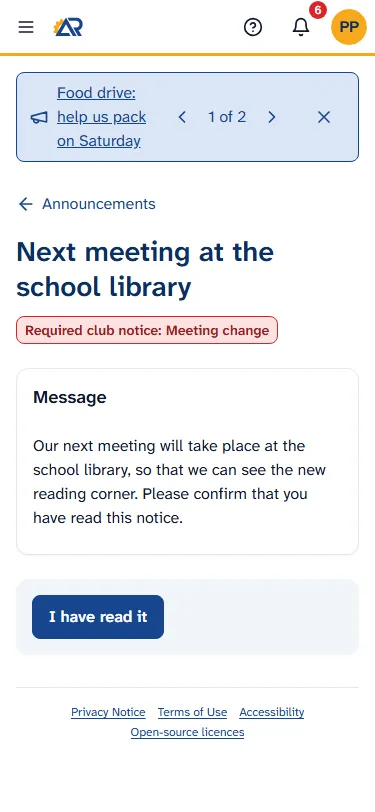
The same button is in the bar at the top of the page, on the line of that notice. It closes the bar. A required notice stays in the bar until you tap I have read it, or until the end date the club chose for the bar.
How to close the bar for an ordinary announcement
Section titled “How to close the bar for an ordinary announcement”An ordinary announcement has no read button. Tap the X at the right of the bar to close it. This closes it only for you. The message stays in your Announcements list.
How to say whether you will attend
Section titled “How to say whether you will attend”Some messages are about a meeting or an event. While the event has not started and has not been cancelled, the message page shows the question Will you attend? under the message.
- Open the message.
- Tap Yes, I’ll attend or No, I can’t attend. A message says “Your answer is saved”, and the page shows “Your answer: Yes” or “Your answer: No”.
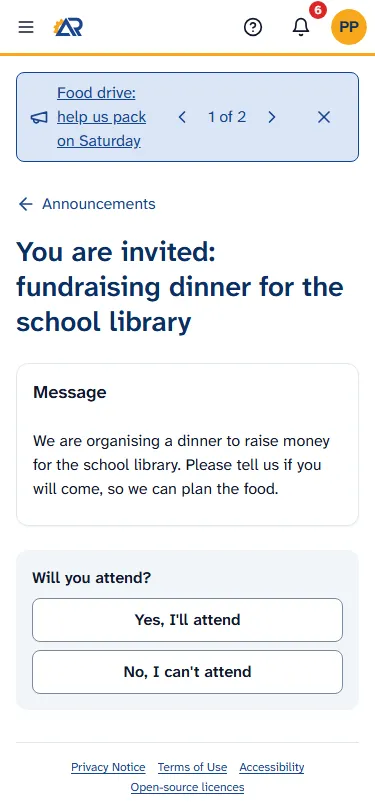
- To change your mind, tap the other button. You can do this until the event starts. After that the question is gone.
In the email, the same question is two buttons: I’ll attend and I can’t attend. Tapping one opens a page with the event, where your choice is marked. Nothing is saved until you tap Confirm. The page then says “Thank you. Your answer is saved.” You do not need to sign in for that page. To change your answer, tap Change my answer, choose the other answer and tap Confirm again. If the event has already started, or the club cancelled it, the page says “Answers for this event are closed.”
The question Will you attend? does not show when you open the event on the calendar. Answers are given from the message or from the email. See Events and attendance.
How to stop announcements by email
Section titled “How to stop announcements by email”There are two ways. Both stop only the announcements. You still get every required club notice, and the bell still shows your announcements.
From the email. At the bottom of an announcement email, tap Unsubscribe. A page opens with the title Email and WhatsApp preferences and the question about stopping club announcements by email and WhatsApp. Tap Unsubscribe. If you did it by mistake, tap Undo on the same page.
From your member card.
- Tap your initials or photo at the top right, then View Profile.
- Tap Edit profile. The window is called Edit my profile.
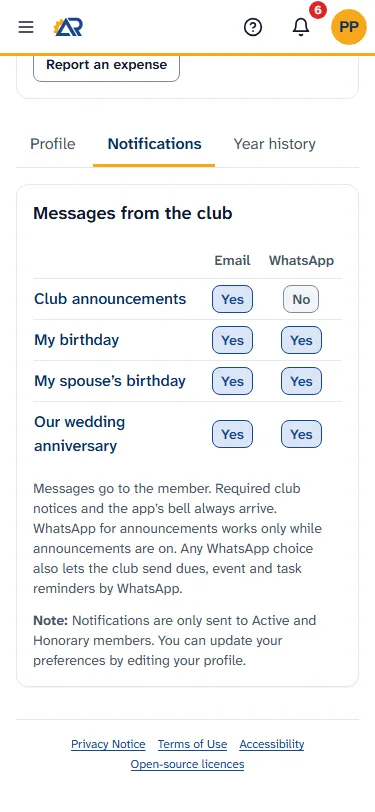
- Go to the table Messages from the club. In the row Club announcements, clear the box Club announcements by email. The box for WhatsApp in the same row can be used only while the email box is ticked.
- Tap Save my profile.
To get announcements again, tick the same box and save. Required club notices do not depend on this table.
If View Profile is not in the menu, your login is not linked to a member card yet. Ask your club secretary.
Common problems
Section titled “Common problems”- I did not get the email. Look in your spam folder. Then open your member card, tab Notifications, and check that Club announcements shows Yes under Email. The bell in the app shows the message either way. If everything is right, ask your club secretary: the club’s email may not be set up.
- The bar at the top is gone. You closed it, or you tapped I have read it. The message is still in the Announcements list.
- I do not see the question Will you attend?. The event has already started or has been cancelled, or the message was not sent to you.
- I see “This message is not available.” The club withdrew the message, or it was not sent to you.
- I see “Could not load the announcements.” Check your connection and tap Try again.