
Sign in for the first time
RotarApp is where your Rotary club keeps its members, events, projects, dues and messages. Your club invites you by email. You choose a password once, then you sign in with your email and your password.
Who can do this: every member the club has invited. An officer with Members: Manage sends the invitation. When an officer approves your onboarding form, RotarApp sends it too.
How to set your password
Section titled “How to set your password”- Open the email that invites you to join your club on RotarApp. Tap the link in it. A page opens with the heading Welcome — set your password to finish setting up your account.
- Type a password in New password. The rules are under the field: at least 10 characters, with upper- and lower-case letters, a number and a symbol. Longer is stronger. A bar under the field shows how strong your password is. To see what you typed, tap the eye button at the right of the field (Show password). Tap it again (Hide password) to hide it.
- Type the same password again in Confirm password.
- Decide about the box Join fellow Rotarians getting news and tips. Unsubscribe anytime. It is not ticked. Tick it only if you want RotarApp’s news. RotarApp sends you security and service notices about your account either way.
- Tap Set password. RotarApp opens.
How to sign in later
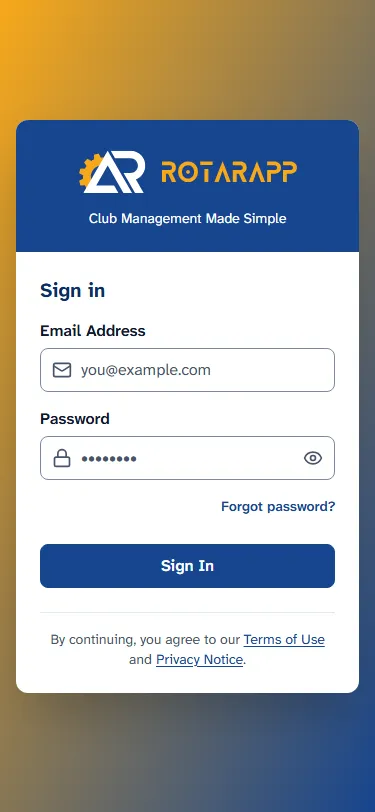
Section titled “How to sign in later”- Go to app.rotarapp.org.
- Type your email in Email Address. Use the email your club has for you: the one the invitation came to.
- Type your password in Password.
- Tap Sign In.
If you turned on two-step login, RotarApp then asks for a 6-digit code. See Two-step login.
How to get a new password
Section titled “How to get a new password”Use this when you forgot your password. You need access to your email. It also works when your invitation link has expired or the invitation email never came: type the email your club has for you, the one the invitation was sent to.
- On the sign-in page, tap Forgot password?.
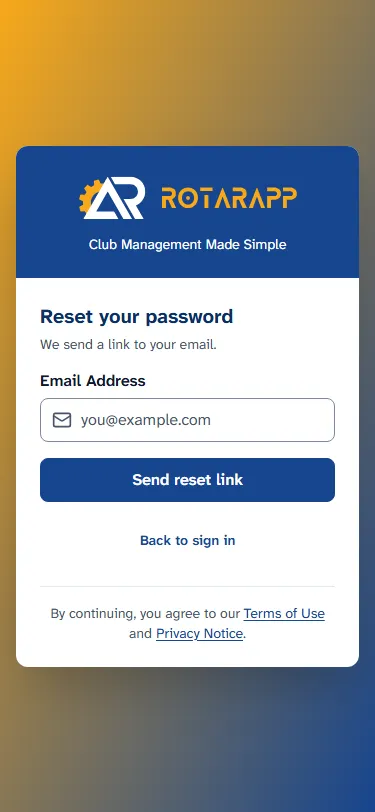
- Type your email in Email Address.
- Tap Send reset link. The page says: “If that email is registered, we’ve sent a password reset link.” It says this for every address, so it does not tell anyone which emails are registered.
- Open the email and tap the link. If you have two-step login, the page first asks for the 6-digit code from your authenticator app. Type it. If you lost your phone, an officer must reset your two-step login first: see Two-step login.
- The heading now reads Choose a new password. Fill in New password and Confirm password, then tap Set password. RotarApp signs you out on your other devices when you set a password this way.
- To go back without sending anything, tap Back to sign in.
Common problems
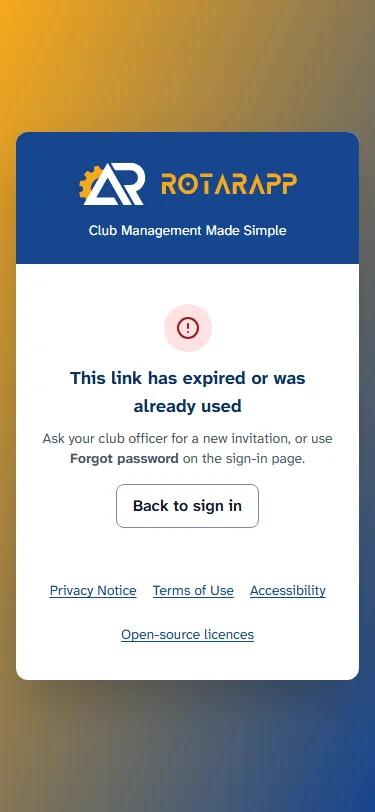
Section titled “Common problems”- “This link has expired or was already used.” A link works once, and only for a limited time. Do not wait for a new invitation. Tap Back to sign in, then Forgot password?, type the email your club has for you, and tap Send reset link. The link in that email lets you choose your password, even if you never set one.
- The invitation email does not arrive. Look in your spam or junk folder. If it is not there, use Forgot password? on the sign-in page with the email your club has for you, as above. If no email comes either, ask an officer to check the address on your member card.
- For officers: Send login invite. Open the member card and tap the ⋯ button (More actions for the member’s name). If Send login invite is there, nobody has been invited yet: tap it. RotarApp shows the address it sent the invitation to (“Invite sent to” and the address). If the item is not there, the member already has a login, and RotarApp cannot send a second invitation. The member uses Forgot password? instead.
- “Invalid email or password.” RotarApp says the same words whether the email or the password is wrong. Check your typing with the eye button. If you are not sure of the password, use Forgot password?.
- The reset email does not arrive. RotarApp says “we’ve sent” even when the address is not registered. Check that you typed the email your club has for you, and look in your spam folder. Then ask an officer.
- A box says that a club wants to link your account. It shows the club’s name, then “wants to link your account”. You already have a RotarApp login, and a club asks to add you. Tap Accept to add the club to your clubs. If you do not know the club, tap Decline.
- A page says “You are already signed in”. You opened the link while you were signed in on that browser. Tap Go to My account. To choose a new password, use the card Password on the Security tab: see Manage your account.
- The sign-in button says “Waiting for the security check…”. Wait a few seconds. The button works when the check is finished.